Branding
Console View
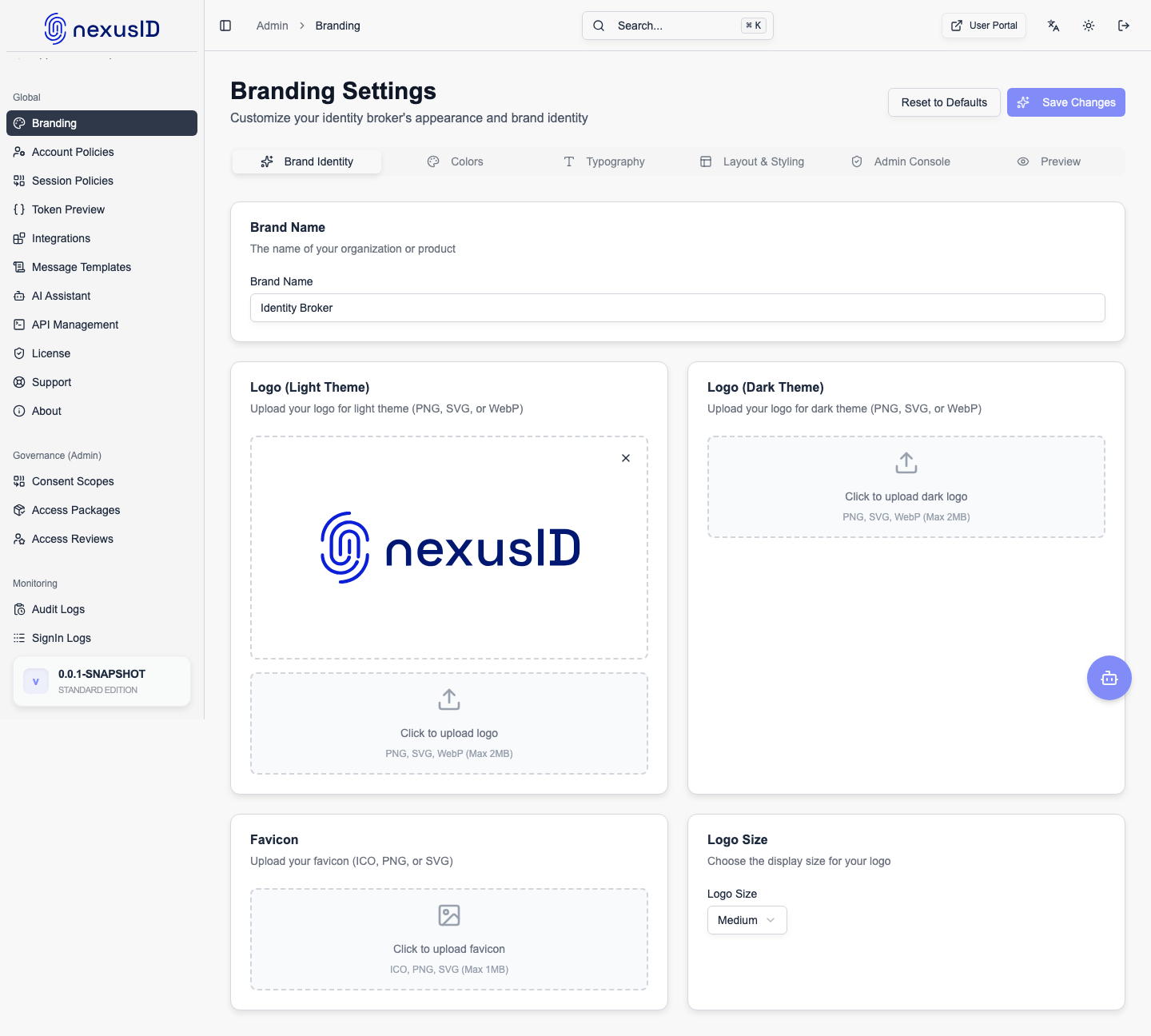
The Branding section allows administrators to fully customize the appearance of the sign-in experience — the Home Realm Discovery (HRD) realm picker and login screens — as well as the admin console shell (logo, favicon, and browser-tab identity).
This enables organizations to deliver a white-labeled authentication experience that aligns with their corporate identity while maintaining secure federated authentication.
Overview
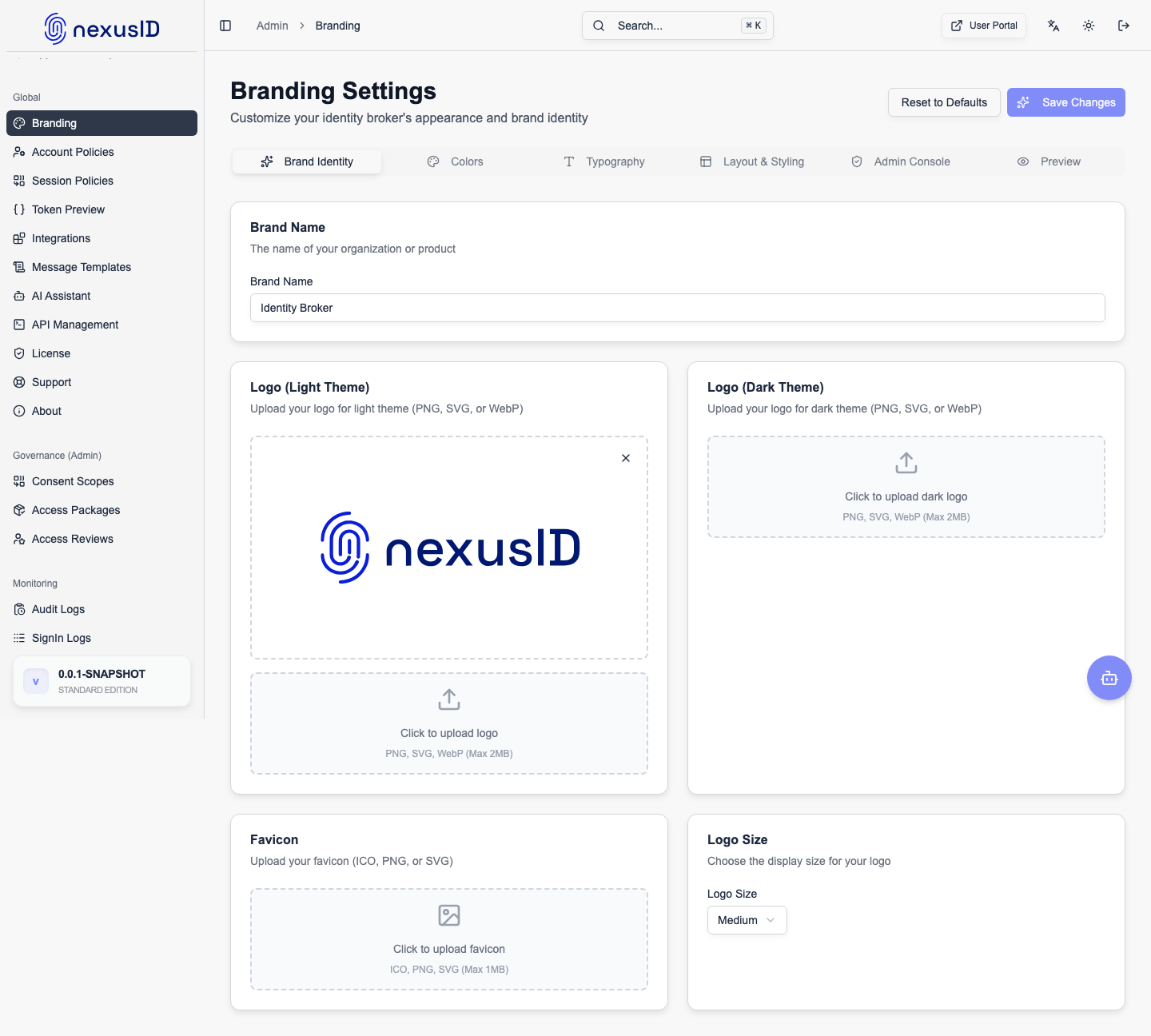
The branding interface provides a real-time preview of how users will experience the sign-in page, making it easy to experiment with visual changes before applying them.
Branding Sections
Branding settings are organized into nine tabs, each controlling a specific surface or aspect of the experience:
- Designer — a live visual theme editor for the global theme (logo, colors, and core tokens) with an inline preview.
- Login Screen — layout variants and customization for the sign-in screen.
- HRD — a dedicated theme editor for the Home Realm Discovery realm-picker page.
- Brand Identity — logos (light and dark) and the Favicon / App icon (see below).
- Colors — the OKLCH color palette (primary, secondary, accent, and button colors).
- Typography — font family and type scale.
- Layout & Styling — card width, spacing, border radius, and button styling.
- Admin Console — admin-console-specific branding, such as the admin logo (light and dark).
- Preview — renders the real HRD page with your unsaved branding, plus a static mockup fallback.
Each tab controls a specific part of the branded UI.
Logo Settings (Brand Identity)
The Brand Identity tab controls the logos and app icon used across the branded surfaces (the admin logo is set on the Admin Console tab).
Available Options
- Upload Logo
- Supported formats: SVG, PNG (transparent background recommended)
- Maximum size: 2MB
- Logo Size
- Small
- Medium (default)
- Large
Logos are immediately reflected in the live preview panel.
Favicon / browser tab identity
The uploaded Favicon (Brand Identity tab → Favicon / App icon) drives more than the sign-in page: it also becomes the browser tab icon across the admin console and user portal, and doubles as the small mark shown on the collapsed sidebar. The configured brand name likewise sets the browser tab title. Both apply live once branding settings load — no rebuild — and fall back to the nexusID defaults when unset.
Background Settings
Administrators can choose how the background of the sign-in page appears.
Background Types
- Solid Color
- Gradient
- Image
Gradient Configuration
When using a gradient background:
- Configure Start Color
- Configure End Color
- Preview updates in real time
This is useful for subtle brand theming without overpowering the sign-in form.
Live Preview
The Live Preview panel displays:
- Logo placement and size
- Background style (solid, gradient, image)
- Layout of the email input field
- Button placement and styling
This ensures changes are reviewed visually before being saved.
Typography
Typography settings allow you to control how text appears on the sign-in page:
- Font family selection
- Font size scaling
- Text color for headers and input labels
Consistent typography helps align authentication flows with the rest of your product UI.
Layout & Styling
Layout options give fine-grained control over the sign-in form presentation:
- Card width and alignment
- Padding and spacing
- Border radius
- Button styling
These controls help adapt the sign-in experience for desktop and mobile users.
Actions
At the top of the page, administrators can:
- Save Changes – Apply branding changes to the live branded surfaces
- Reset to Defaults – Restore all branding settings to the nexusID defaults (this cannot be undone)
Changes are applied immediately once saved.
Best Practices
- Use SVG logos for best clarity across screen sizes
- Keep background colors subtle to maintain readability
- Test branding changes across desktop and mobile devices
- Align branding with your primary application UI for a seamless experience
Use Cases
- White-label authentication for SaaS customers
- Enterprise-specific login branding
- Multi-tenant deployments with shared infrastructure
- Consistent user experience across identity flows
The Branding module ensures Identity Broker integrates seamlessly into your product ecosystem while maintaining a polished, professional authentication experience.