Account Linking
Console View
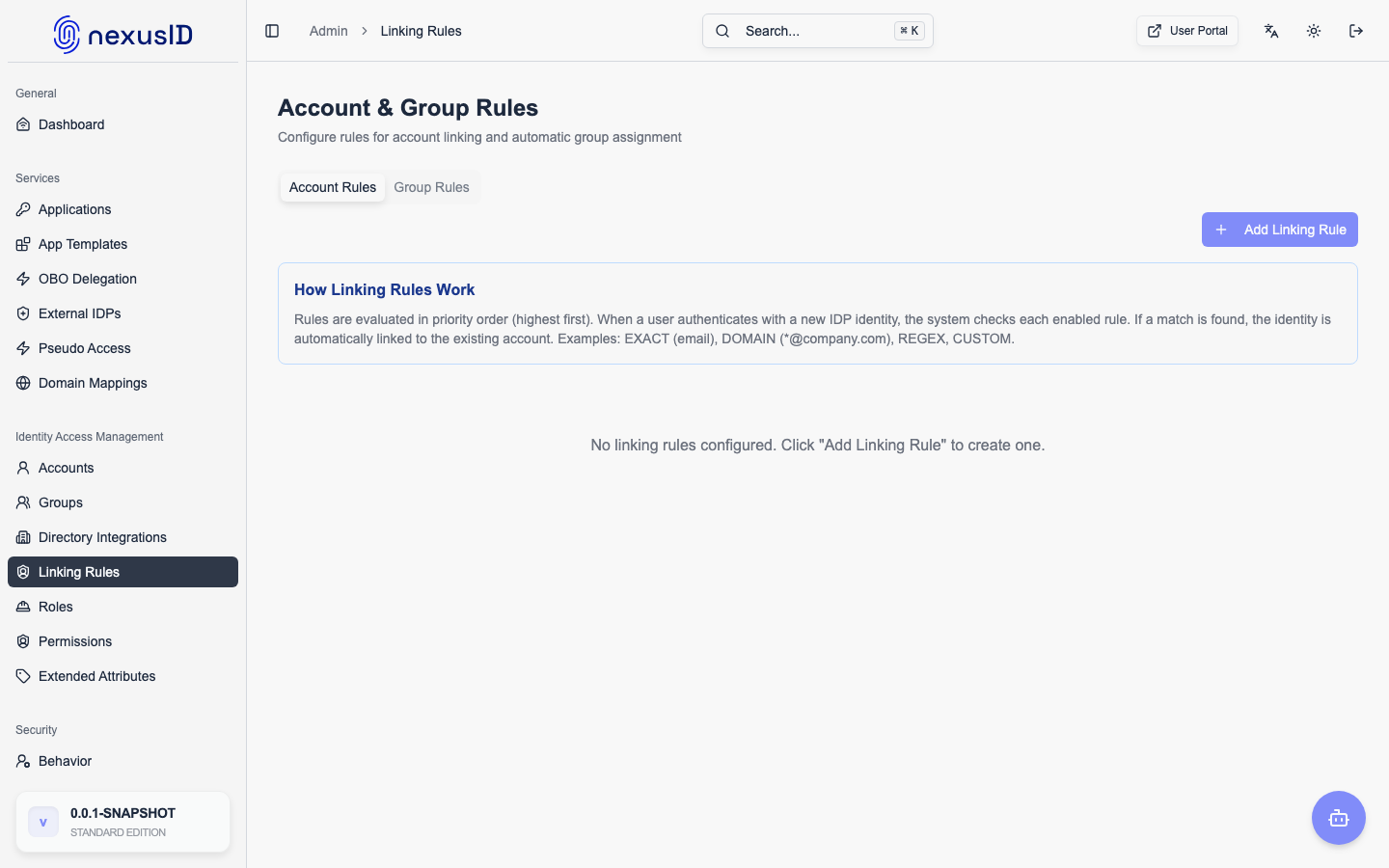
Account Linking is a core feature of Identity Broker that allows users to connect multiple identity provider (IDP) identities to a single unified account. This ensures a consistent user experience and persistent user identity across different authentication methods.
Key Concepts
Canonical User Identities
In a typical IDP broker, a user signing in with Google and later with Microsoft would result in two separate accounts. Identity Broker solves this by introducing Canonical User Identities.
- Canonical Subject: Every user is assigned a unique, internal identifier (e.g.,
usr_a1b2c3d4). - Persistent Identity: This subject ID is used in all tokens (OAuth2/OIDC) and SAML assertions issued by Identity Broker, regardless of which IDP the user used to sign in.
- Relying Party Integration: Applications only need to track the canonical subject, simplifying user management and data correlation.
Linked Identities
A single User Account can have multiple Linked Identities. Each link represents a specific identity provider and the user's unique identifier (subject) within that provider.
- Primary Identity: One identity is designated as primary and is typically used to populate the user's base profile (name, email, avatar).
- Verification Status: Tracks whether the identity's email has been verified by the upstream IDP.
Account Linking Rules
Administrators can configure Account Linking Rules to automate the process of consolidating identities. When a user authenticates with a new IDP, Identity Broker evaluates these rules in priority order to find a matching existing account.
Match Types
- EXACT: Matches a specific claim (usually
email) exactly. - DOMAIN: Matches the domain of an email address.
- REGEX: Uses a regular expression to match claims.
- CUSTOM: Allows for complex matching logic based on multiple claims.
Rule Configuration
- Match Field: The claim to evaluate (e.g.,
email,sub,upn). - Priority: Rules are evaluated from highest priority (lowest number) to lowest.
- Auto-Link: If enabled, the system automatically creates the link upon a successful match.
- Require Email Verification: Ensures that identities are only linked if the upstream IDP has verified the email address (highly recommended for security).
Administrative Management
Administrators can manage accounts and linking rules via the Accounts and Linking Rules sections in the Admin Console.
User Account Management
- Search & Filter: Find accounts by email, name, or canonical subject.
- View Linked Identities: See all IDPs connected to a specific account.
- Manual Linking: Manually link an identity to an existing account.
- Set Primary: Change which identity is considered primary.
- Unlink: Remove an identity from an account (with safety checks to prevent account orphaning).
Audit Trail
Every account linking event is recorded in the Account Linking Audit Log, including:
- Link creation/removal.
- Rule matches.
- Primary identity changes.
- Manual administrator interventions.
User Self-Service
If enabled, users can manage their own linked identities via the User Portal.
- View all connected accounts.
- Add new identities by authenticating with a different IDP.
- Remove identities they no longer wish to use.
Security Best Practices
- Require Email Verification: Always require
email_verified=truefor automatic linking based on email addresses to prevent account takeover. - Review Audit Logs: Regularly monitor the Account Linking Audit Log for unusual linking patterns.
- Manual Approval: For high-security environments, disable auto-linking and require administrative approval for new identity links.
- Primary Identity: Use a trusted, corporate IDP as the source for the primary identity whenever possible.